
This plug in copies any Gedcom 5,5,1 Longitude and Latitude values from Event Place fields to Place records. Note it overwrites any existing values for Fact places which have values. It is mainly used when moving from programs such as Family Tree Maker which store the values against the fact when the Gedcom is created. If there are different values with the same place name the last one found will be the one which is used. Examples from FTM have never shown this to occur.
Family Historian Version(s): V6 V7
Moves all Local Media Objects (LMO) to Media Records that are much better supported by Family Historian. Such LMO may be derived from imported or merged GEDCOM from other products. Both FH V6.2 GEDCOM 5.5 and FH V7.0 GEDCOM 5.5.1 are supported. It excludes any LMO that conform to the Sort Date format used in FH V6.2. It includes LMO in invalid positions registered as UDF, but relocates them to the parent item, e.g. an LMO on an Address will become a Media record linked to the parent Fact. If multiple LMO have identical values, such as the same File path, then only one shared Media Record is created. If most other Media files are in the Project Media folder, then each LMO file is copied there too, leaving the original behind. Invalid data will move to the Custom Id in the Media Record.
Family Historian Version(s): V5 V6 V7
Convert any local Note with an unformatted URL and optional codes into the Rich Text active Web Link <web="URL"> format.
On completion, the plugin will optionally list all the converted URL in a Result Set.
The plugin handles the http://, https://, and ftp:// URL protocol formats with safe, reserved, unreserved, and most unsafe characters.
This is useful for GEDCOM exported from FTM 2019 where Source Citations have Web address URL held in _LINK tags that are imported by FH into local Note fields. The plugin will convert them to Rich Text active Web Link format.
Another use is for handling custom attribute facts with auto-created local Note text containing URL as explained below.
The Tools > Fact Types... command must be used to define a custom attribute in which the Fact Definition dialogue, Advanced... button, Auto-Create Note: field, specifies a URL with a format such as:
See https://www.familysearch.org/tree/person/details/{value}/ "{individual's} {value} FamilySearch" page.
When the custom attribute is added to an Individual, that text is automatically inserted into the local Note field and the user enters the attribute value, which is the unique part of the website URL.
The plugin converts that URL and the {value} and {individual's} codes to the Rich Text active Web Link format such as:
See <web="https://www.familysearch.org/tree/person/details/LH3-6Y/","John Smith's LH3-6Y FamilySearch"> page.
That is displayed in the Note text as: See John Smith's LH3-6Y FamilySearch page.
The requirements are:
https:// or http:// or ftp://."string quotes".{value} to be replaced by the fact attribute value.{individual} and {individual's} to be replaced by the record Name.{value} code, but no fact attribute value, then the Note is not converted.
Family Historian Version(s): V7
Lists all Notes linked to a selected Individual. Works best if Added to Tools Menu. Then select an Individual (in Focus or Records window or Diagram) and click on the entry in the Tools Menu. It takes a few seconds to find all the Notes and format the output; if there are none a message to that effect appears quickly.
Family Historian Version(s): V5 V6 V7

Creates a Result Set of counts of Occupations for each Census Year and Gender derived from your Project or GEDCOM. Supports Occupation Date Ranges & Periods and checks that the Individual has a Census Event in the relevant Year.
Family Historian Version(s): V5 V6 V7

In FH v6 sort Facts according to their synthesised LMO Sort Date or in FH v7 turn each LMO/Media Sort Date into a real Sort Date. In FH v6 any missing LMO Sort Date may be derived from a GEDCOM _SDATE, Note "Sort Date:", actual Fact Date, synthetic date, etc. Allows Sort Dates to be imported from products such as TMG and exported to products such as GedSite via the Export Gedcom File Plugin. See the Help and Advice for details.
Family Historian Version(s): V5 V6 V7
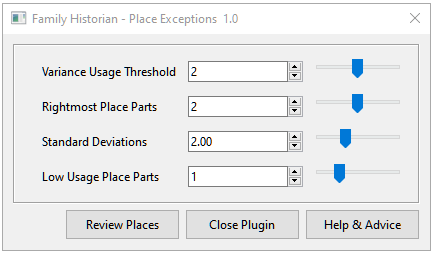
Place records can misspell names or misplace plots so this plugin tries to identify such exceptions. The user settings adjust the analysis algorithms and it produces five types of abnormality report in a Result Set. See the Help & Advice that explains the user settings, interprets the reports, and offers diagnostic techniques.
Family Historian Version(s): V6 V7
Renames plugins removing underlines from plugin names, to deal with problems caused by IE8 replacing spaces with underlines when downloading under windows 7. Once run all plugins will have no underlines in them and can be updated using the Plugin "Check Installed Plugins Against The Store".
Family Historian Version(s): V5 V6 V7
Ensure each line break is one Carriage Return and one Line Feed character to prevent Plugin debug editor misunderstanding line numbers. Sometimes line breaks have extra or missing Carriage Return or Line Feed characters. That can upset the Plugin debug editor line numbering such that breakpoints are inserted earlier than suggested by the line number. Although designed for correcting Plugin script files, it will operate on any chosen file.
Family Historian Version(s): V6 V7

Displays a pop-up summary of close relatives & events for any chosen person. Click any person to alter focus. Useful for matching names when reviewing Census and Electoral records, etc. Use Windows Snip & Sketch to capture and print. If added to the Tools menu, can be invoked with the Alt T Q shortcut.
Family Historian Version(s): V5 V6 V7

Allows any Address and Place comma-separated column parts to be re-arranged by mapping any source part to any target part. Any Address part that duplicates a Place part may be enclosed in [[privacy]] brackets to hide them in Reports. Otherwise, any Address part that duplicates a Place part, or Place part that duplicates an Address part, may be erased. It also allows the Address or Place fields to be right or left justified. A subset of Place records may be selected before running the plugin or a subset of Address & Place combinations may be selected via the plugin Input Filter tab.
Family Historian Version(s): V5 V6 V7
This plugin is used to refresh titles for all Source records in the current project that have auto titling enabled. Auto titling is only (optionally) supported for templated Source records. It normally occurs (if enabled) whenever changes are made to the fields in the Source record. Use of this plugin is only needed if you make changes to the Record Title Format in one or more Source Template records, and wish to apply those changes to existing Source records.
Family Historian Version(s): V7
Based on the percentages here: https://thednageek.com/the-limits-of-predicting-relationships-using-dna/ This version shows the ranges for the groups over .4 percent. The table controlling the range values is right at the top of the source code if you want to try tweaking it. Please note this version does not take into account Adoptions or Step relationships correctly at this time as there is no easy way to detect them.
Family Historian Version(s): V6 V7
This plugin renames the Media records and also the media files (in the Media project folder or external) that are associated with the selected Source records, so that their names match the Source record title as closely as possible. It will add a numeric suffix to ensure uniqueness if necessary. Caution: This plugin renames external Windows media files associated with source records. 'Undo plugin updates' won't restore the original filename. When renaming a media file that is used in other projects as well, links to that media file in the other projects will no longer work, unless and until you repair them. Warning: Windows does not support certain characters in the filename. The plugin will replace these with ~ and report the replacement(s) in the result set.
Family Historian Version(s): V7
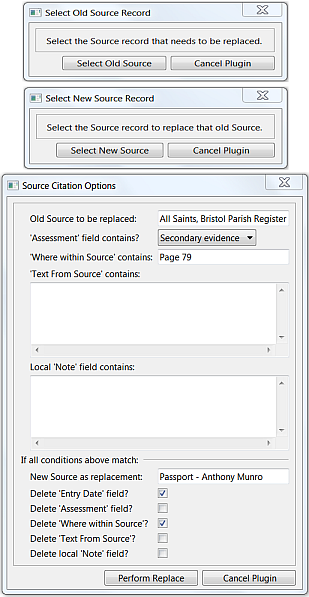
Allows a set of Source Citations to be selected by various criteria in order to replace their old Source Record with a new Source Record and optionally delete various Source Citation fields. If any field 'contains' box is left blank, then that matches all such fields.
Family Historian Version(s): V5 V6 V7

This plugin provides a simple method to locate specific types of Rich Text in your project. This can be useful for checking compatibility of your project before exporting a GEDCOM file, or for locating rich text features such as a defined font that are no longer required. Output is to the Query Window, where Records and specific fields containing the defined rich text options are tabulated for easy selection and editing if required. The plugin does not make any changes to your project data, and is designed simply as a locating tool without any automatic or bulk editing features.
Family Historian Version(s): V7