

This plugin is similar in concept to the long-established Check for Possible Duplicate Media plugin, but extends the scope to cover all media files, provides more detailed reporting, and adds optional merging of identical media records. Although the core concept is similar to the earlier plugin, it has been completely rewritten using different tools and processing logic to enable it to include files with Unicode names and paths, as well as files of virtually unlimited size. Multiple files in the same media record, which is a GEDCOM 5.5.1 feature added in version 7 of Family Historian, are also supported. Processing time has been shortened markedly, and the plugin includes more detailed reporting options that are fully described in the accompanying help file. As well as the existing manual merging processing (select a pair of records to be merged, then click on Edit > Merge/Compare Records... from the main Family Historian menu), there is a new option to automatically merge all identical media records, or to merge records where there are duplicate Media folder files that differ just by a numerical suffix.
Family Historian Version(s): V7

Checks all the media files in the media folder are linked to media records in the Project and optionally can delete or move unlinked files. Note deleted or moved files can not be recovered using the Undo option in Family Historian as the deletes are done directly on the disk. It is therefore recommended you do a FULL Family Historian Project Backup prior to running.
Family Historian Version(s): V5 V6 V7

Searches any specified location on the user's PC to check for files that are not linked to Media Records in the current project (of particular interest to users who link existing media files to their project rather than copy them into the Media folder). The plugin menu enables the user to specify either the Media folder, any other defined folder, or all folders that contain at least one linked media file. Output can be formatted to show either separate folder and file name, similar to the default configuration of the Records Window, or with the full file path. Files with names beginning with either a dot or a tilde character (~) are excluded from the search, as these are normally temporary or hidden files, as are files with a .db extension, commonly used by image management software. This new plugin fully supports files with Unicode characters in their name and path that may not be processed correctly by the earlier Check for Unlinked Media plugin. Unlike the earlier plugin, which only supports searching the project Media folder, this new option does not currently offer the facility to either move or delete unlinked files. When a plugin deletes a file, it is deleted permanently from the disk, not send to the Recycle Bin, and selecting the wrong folder accidentally could result in a very large number of accidental file deletions. If users want to delete all the files listed, the recommended method is to export the output to an external file and use that as the basis of a batch file/command script to perform the deletions.
Family Historian Version(s): V7
Checks currently installed plugins against those currently in the store and optionally downloads and installs later versions. If you have many plugins installed it will take a while to run to please allow it some time to complete.
Family Historian Version(s): V5 V6 V7
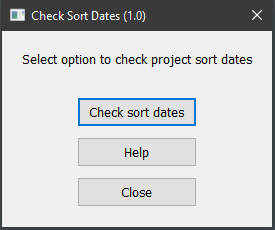
Sort dates are supported by a number of different family history applications, but the way they are implemented and stored can vary between products. As a result, import into Family Historian from another produce can generate sort dates that are either unnecessary or invalid. This simple plugin checks your Family Historian project for such sort dates, and presents the option of either listing them for further examination, or deleting automatically. It is recommended for all projects that have been directly imported from another product.
Family Historian Version(s): V7

This plugin offers several options to reduce the amount of information in a GEDCOM file for living people. When sharing files online, it is advisable to privatise the details of Private and Living people. The plugin is designed to be used in conjunction with the Export > GEDCOM File and Split Tree Helper commands, and will prompt for confirmation if you try to use it on a GEDCOM file that is open in Project mode. It will take note of the Private and Living flags on a person, but can be additionally set to assume anyone with an actual or estimated birth date after a selected date (or with no birth date) and also with no death date is still living. Any person listed in the 'Do Not Clean Living Persons' Named List will be unaltered. See the FHUG 'Export to Website Without Sensitive Data' advice for an example of use.
Family Historian Version(s): V5 V6 V7

Removes fields that typically upset Ancestry, or hold sensitive data, or are chosen by the user. It is designed to be used in conjunction with the File > Import/Export > Export > GEDCOM File... and File > Split Tree Helper... commands, and will prompt for confirmation if you try to use it on a GEDCOM file that is open in Project mode. See the FHUG Knowledge Base advice on how to 'Export to Website Without Sensitive Data' for an example of use.
Family Historian Version(s): V5 V6 V7
This plug in converts record notes which have only one link to "local notes" and removes blank lines at the front of the note if they exist. It is mainly used by users moving from "Generations" which stores all notes as record notes and prefixes all notes with a blank line.
Family Historian Version(s): V5 V6 V7
Process all Surnames, tidying the capitalisation for Surnames recorded in the file in ALL CAPS. Special Cases for Mac,Mc,de' and O' have been included more can be added in the capitalise function, also allows over-ride at runtime by prompting the converted surnames for confirmation.
Family Historian Version(s): V5 V6 V7
Creates one or more clones of a selected record. Useful for creating new records (especially sources) based on a template. It is best to add this plugin to the Tools menu and run it from there after selecting the required "Template" record in the Records Window. A message confirms creation of new record(s) and (if only one) full details are optionally shown as a result set. You then need to change the name/title of each new record and complete any required non-template fields. The template record can contain blank fields if wanted, and links to other records. User is prompted to confirm that an Individual or Family record should be cloned. Note that if an Individual record is cloned the new record will contain an empty Family-as-Spouse link which can be either appropriately completed or deleted. Updated 14 Jan 2021 to work with FH7 as well as FH5 & FH6. Updated 02 Aug 2021 to v3.0 to also allow multiple (2 to 50) clones; default behaviour same as previous version.
Family Historian Version(s): V5 V6 V7
Loads a GEDCOM file exported from Legacy and converts the Place data to FH format.
Family Historian Version(s): V5 V6 V7
Updates Text from source for the source currently selected, if you have multiple sources selected all will be prompted until the process is aborted or the list is completed. In the first prompt select the table text, no selection will treat the whole text as a table and the delimiter, then click OK. The results for each source will be shown in a Rich Text prompt where you can adjust as needed before clicking OK. N.B If you have comma separated texts, the plugin will use your place records to try and identify the places. If the place is not found you will find you have additional columns
Family Historian Version(s): V7
This plugin will copy the current record IDs in a Gedcom file to either the Custom ID, Automated ID or a UDF value. This is useful if you have used the numbers from the originating program for physical filing or in other add on systems. It is designed to work on a Gedcom File PRIOR to opening the file in Family Historian. Family Historian will only renumber imported records, if the record ids are non numeric or very long. This can then be used if needed to cross reference the old numbers, should Family Historian need to renumber. To use, please open the sample Project or "another" Project, then run the program and select your gedcom file. DO NOT open your gedcom file in Family Historian before running the plugin to retain the old numbers. The plugin will create a new gedcom file in the same folder as the original with -new added to the end of the file name.
Family Historian Version(s): V7
Create (if necessary) and Update counts for the number of ancestors and the number of descendants for each person in the current project. Where the custom attributes are created the Fact Set information will need to be updated manually. To use the counts in queries remember to use the =texttonumber() function to convert the value to a number to allow logical sorting. Also if running on files containing Royal lines please be aware it may take some time to run. To use the counts in queries remember to use the =texttonumber() function to convert the value to a number to allow logical sorting.
Family Historian Version(s): V5 V6 V7
Simple plugin which can create a link on the Windows Desktop to open a selected Individual in a selected Project on either the Records Window or the Focus Window. The file can either be named as "Launch Family Historian" or with the selected persons name. The former is useful as a quick bookmark, especially if you add the Plugin to the Tools menu where it can be run quickly before closing Family Historian.
Family Historian Version(s): V6 V7
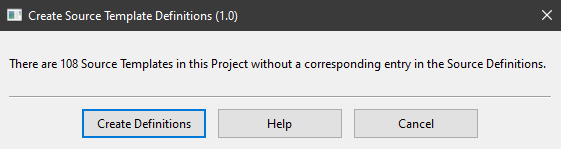
This plugin creates Source Template Definitions from Source Templates generated directly within Family Historian or imported from another compatible application such as RootsMagic. This enables the Source Templates to be used in all Projects, not just the one in which they were created or imported. The latest version of the plugin incorporates minor improvements to the user interface, plus full support for templates containing Unicode characters.
Family Historian Version(s): V7